For years, a frustrating monthly routine has plagued public sector workers across Pakistan: making a dedicated trip to the local accounts office just to collect a physical copy of a salary slip. Whether dealing with long queues, misplaced payroll documents, or administrative bottlenecks, tracking monthly earnings has historically been an unnecessary chore. Furthermore, trying to register for digital access often leads to roadblocks like email verification errors, typing mistakes in personal credentials, or getting lost in confusing system portals.
Fortunately, the system has evolved. Through the Project to Improve Financial Reporting and Auditing (PIFRA), government personnel can now bypass physical visits entirely. By completing a straightforward online registration process, employees can have their monthly salary slips, pension details, and financial summaries delivered straight to their digital inboxes.
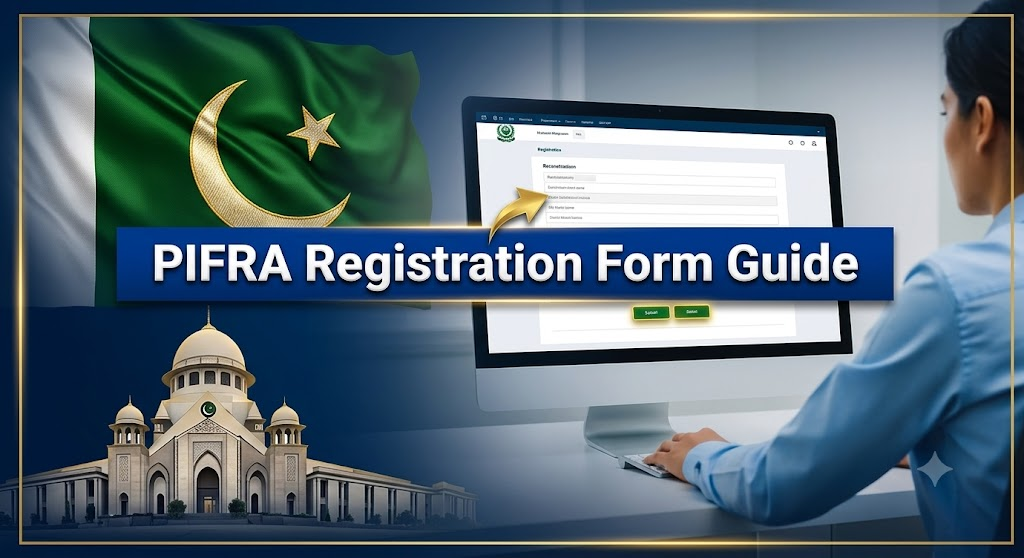
This comprehensive, step-by-step 2026 guide breaks down how to navigate the PIFRA email registration procedure seamlessly, understand required credentials, locate proper government codes, and troubleshoot common technical hiccups without hassle.
Before jumping into the registration steps, it helps to understand what the system actually is. PIFRA stands for the Project to Improve Financial Reporting and Auditing. It represents a massive national reform initiative designed to bring transparency, accountability, and digitalization to financial management across all government tiers in Pakistan.
At its core, PIFRA bridges the gap between public sector employees and computerized payroll architecture. Once your email is successfully linked to the database, you unlock several major practical benefits:
- Automated Monthly Delivery: Your official salary slip arrives automatically in your Gmail or preferred email account the moment payroll is processed.
- Archived History: Every past slip remains safely stored in your inbox, allowing you to access, review, or download historical financial records whenever needed.
- Transparent Deduction Tracking: You can effortlessly review allowances, tax withholdings, loan deductions, and recoveries directly from your digital statement.
- Simplified Documentation: Digital pay statements serve as authentic financial proof when applying for bank loans, consumer financing, or filing annual tax returns with the FBR.
- Retirement Continuity: After retirement, the system transitions smoothly to dispatching your monthly pension slips through the exact same digital channel.
Before opening the portal, you must gather your exact administrative details. The PIFRA system matches your inputs against master government payroll data. Even a single misplaced digit can trigger validation errors. Make sure you have the following information ready:
- Government Code: A unique identifier corresponding to your specific province, federal division, or governing council.
- Employee ID: Your unique internal personnel number, which is printed clearly on any of your older physical salary slips.
- CNIC Number: Your 13-digit Computerized National Identity Card number, entered without any dashes (e.g., 3520212345671).
- Date of Birth: Formatted strictly according to official government files, typically entered sequentially without separators.
- Active Mobile Number: A personal phone number registered under your own name to ensure smooth communication and verification.
- Active Email Address: A working email inbox (preferably Gmail) where you want your monthly statements sent.
Selecting the correct government code is vital because it tells the database which regional treasury handles your payroll. Reference the table below to find your exact code before starting the form:
| Government Code | Territory / Federal / Provincial Division |
| F | Federal Government |
| P | Government of Punjab |
| S | Government of Sindh |
| B | Government of Balochistan |
| N | Government of Khyber Pakhtunkhwa (KPK) |
| K | Government of Kashmir |
| C | Kashmir Council |
| GB | Government of Gilgit-Baltistan |
| GBC | Gilgit-Baltistan Council |
| DGP | District Government Punjab |
| DGN | District Government KPK |
Step-by-Step PIFRA Email Registration Walkthrough
Follow these sequential steps carefully to register your email and start receiving digital pay statements:
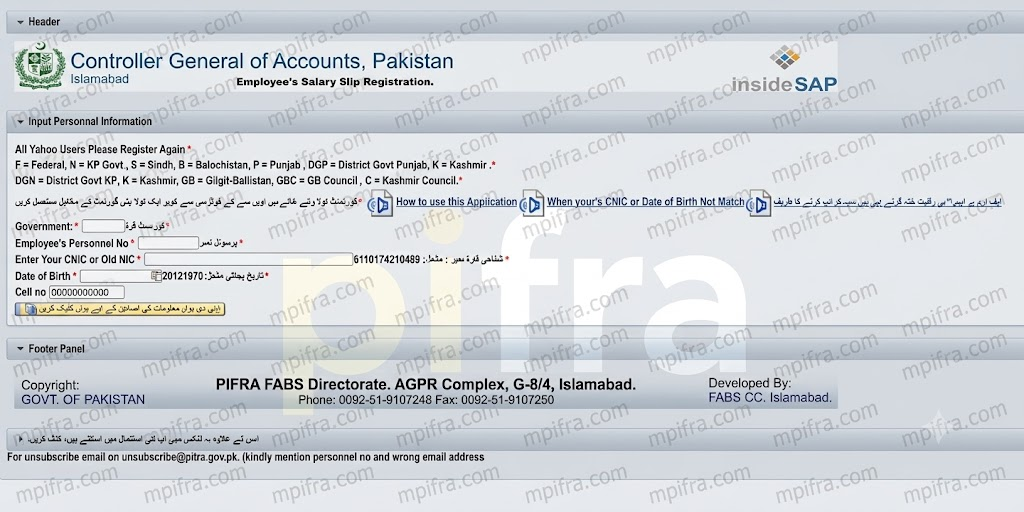
Step 1: Access the Official Portal
Open a web browser on your mobile phone or laptop and navigate directly to the official PIFRA salary slip portal ([https://m.pifra.gov.pk/salaryslip_emp]. Always type the address manually or use trusted official links to avoid unofficial clone pages.
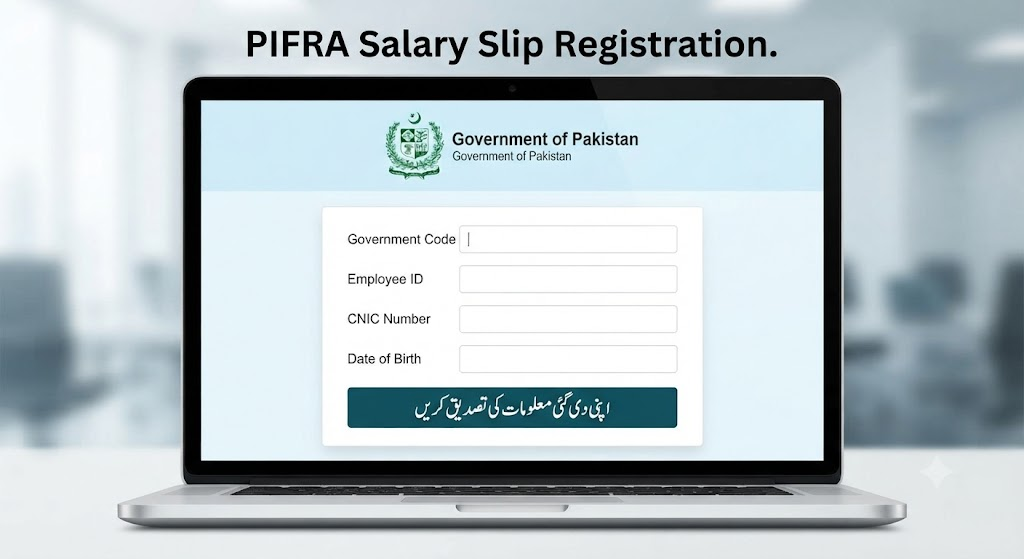
Step 2: Input Your Personal Credentials
On the main landing page, you will see a data entry form. Fill in your details with absolute precision:
- Select or type your assigned Government Code.
- Input your official Employee ID.
- Provide your 13-digit CNIC Number (strictly without dashes).
- Enter your Date of Birth matching your service records.
- Type your active Mobile Number.
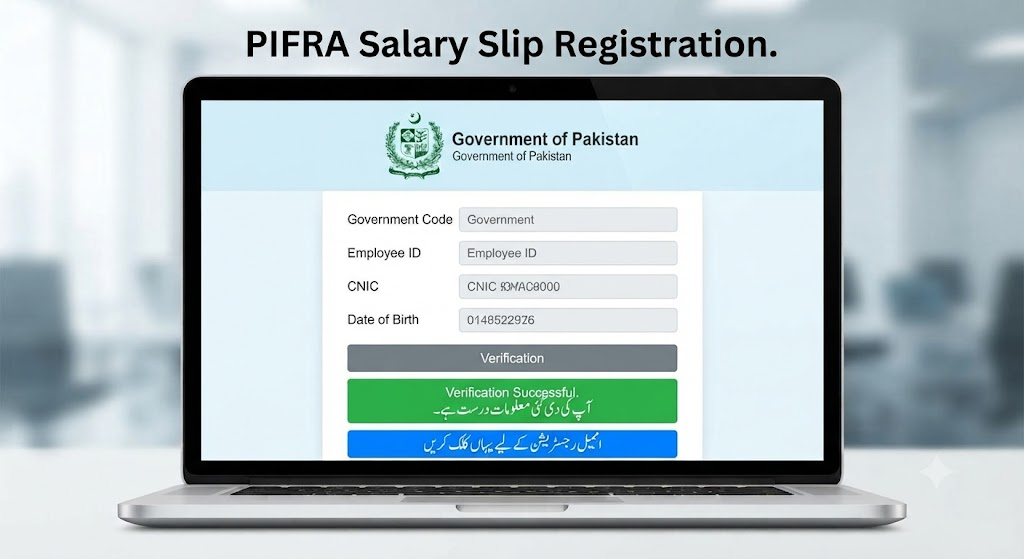
Once filled, click the verification button labeled in Urdu: “اپنی دی گئی معلومات کی تصدیق کریں” (Verify your given information).
Step 3: System Data Matching
If your typed credentials match the central database precisely, the system will output a positive confirmation message on your screen: “Your given information is correct. آپ کی دی گئی معلومات درست ہے”. If an error appears, double-check your Employee ID or date of birth against an older physical pay slip.
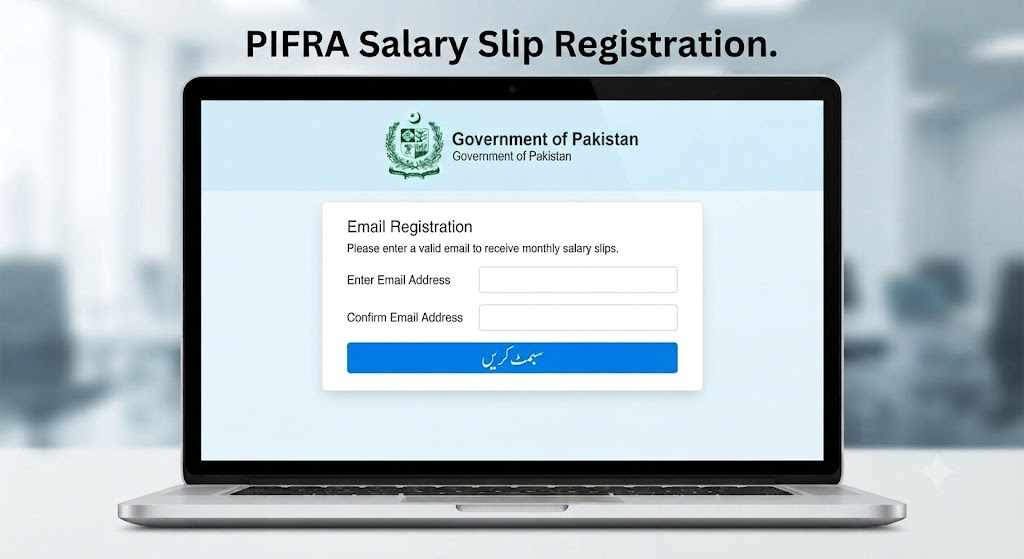
Step 4: Proceed to Email Integration
With your identity successfully verified by the system, look for the next action prompt and click the email registration command: “ایمیل رجسٹریشن کے لیے یہاں کلک کریں” (Click here for email registration).
Step 5: Input and Confirm Your Email Address
- Type your preferred email address into the designated field.
- Re-type the exact same email address in the confirmation box to prevent typos.
- Press the enter key or submission trigger.
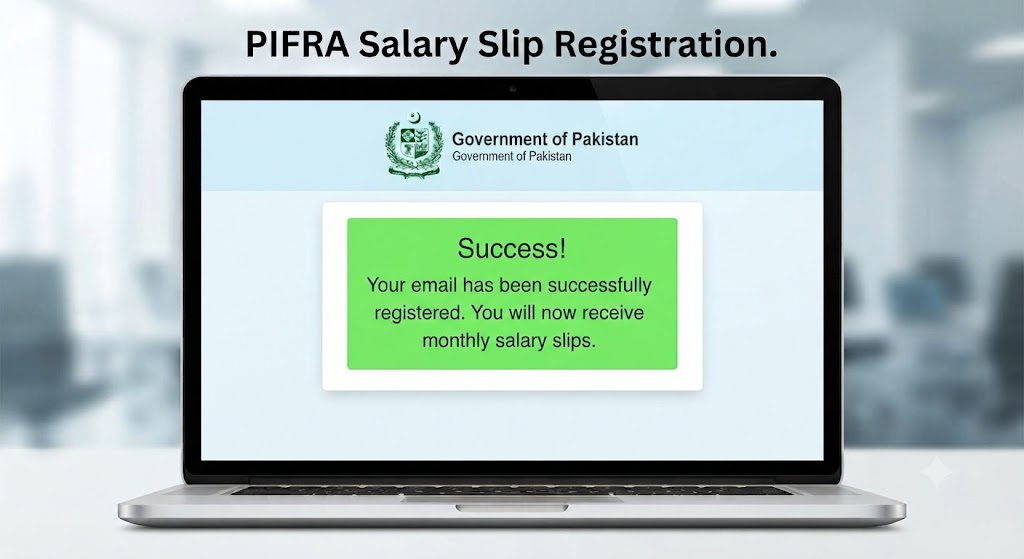
A prompt will appear stating: “Now it is all OK. Please click the submit button. سب ٹھیک ہے، اب نیچے دیے گئے بٹن پر کلک کریں”. Click the final confirmation button: “اس بٹن پر کلک کریں”.
Step 6: Final Completion and Automated Dispatch
Upon successful completion, a confirmation notice will flash on your screen: “آپ کا ای میل رجسٹر ہو چکا ہے۔ آپ کو اس ای میل پر ہر مہینے سیلری سلپ بھیجی جائے گی۔” (Your email has been registered. You will be sent a salary slip at this email every month.)
Pro-Tips and Troubleshooting Common Errors
Even with a streamlined process, users occasionally run into minor roadblocks. Keeping these solutions in mind will save you time:
- Checking Existing Registration: If you aren’t sure whether your email was previously linked, revisit the registration page, re-enter your credentials, and hit the initial verification button. If already registered, the portal will display a notification detailing the original registration date.
- Formatting Errors: The most frequent cause of registration failure is entering dashes into the CNIC field or using an alternate date format. Stick strictly to continuous numbers as outlined in the instructions.
- Missing Emails: If your salary slip doesn’t arrive in your inbox after payroll processing, check your Spam or Junk folders. Occasionally, automated government mail filters into secondary folders; marking the sender as safe will fix future deliveries.
PIFRA stands for the Project to Improve Financial Reporting and Auditing, acting as a digital financial management system that sends monthly pay slips directly to registered government workers.
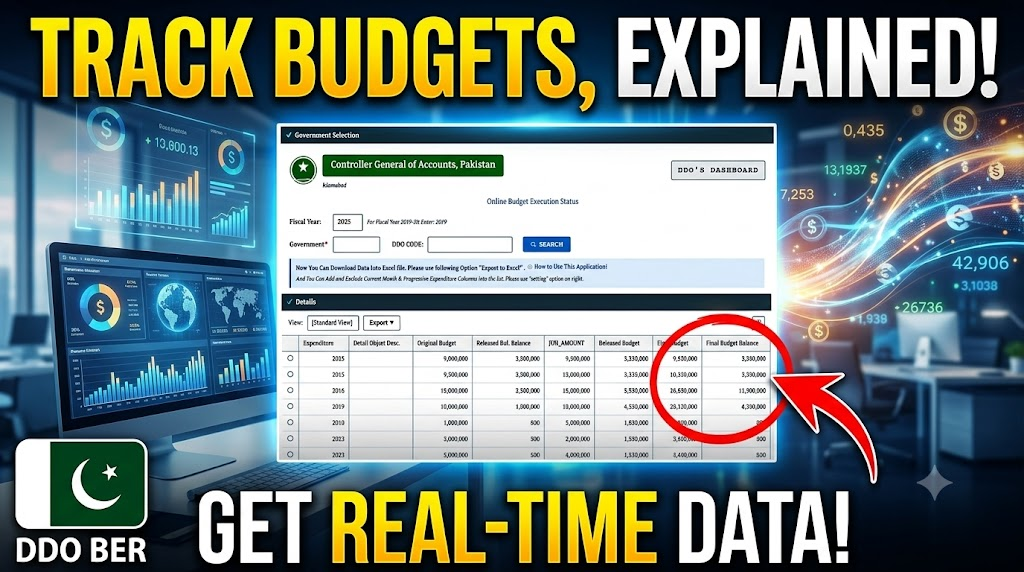
Key features include online salary slips, computerization of government accounting, budgeting, and auditing records, and financial controls to monitor public spending.
The main objectives are to computerize accounting and auditing records, manage public debt, monitor spending, and improve tracking.
The context outlines FAQs regarding the government code in Pifra, though it does not explicitly state the definition or value of the code itself.
Pifra employee information refers to the digital payroll data used to send monthly pay slips directly to the email inboxes of registered government workers.